Quick Payment Collection
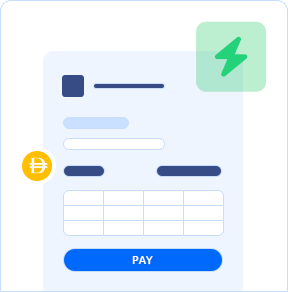
Now collect online payments from customers directly through Zoho's invoicing platform
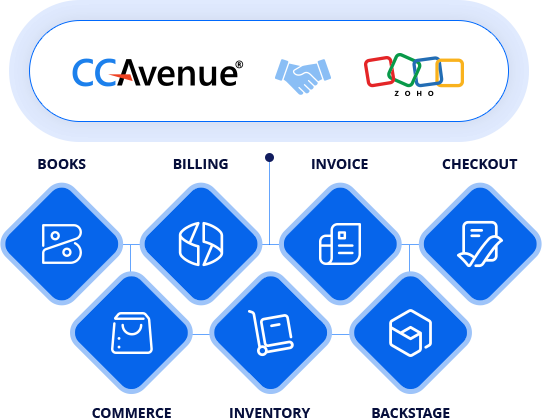
Now collect online payments from customers directly through Zoho's invoicing platform
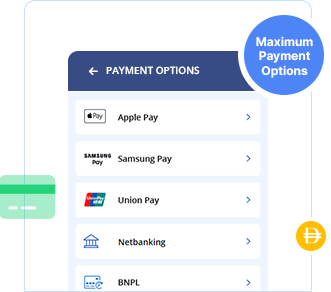
Accept payments via Cards, ApplePay, Samsung Pay, Union Pay, BNPL, Netbanking, UPI, Wallets etc.
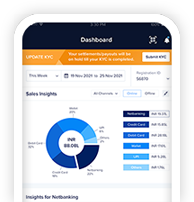
Track and manage all your payments in real-time, auto -synced in Zoho
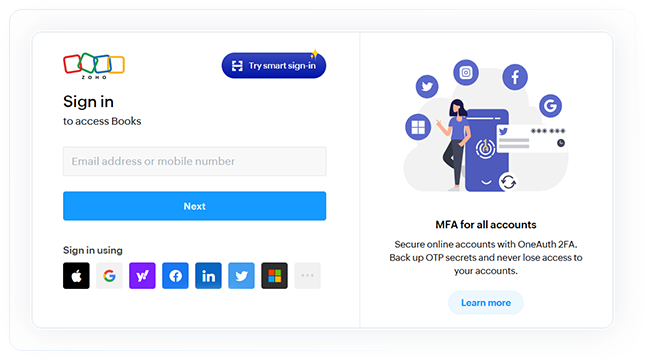
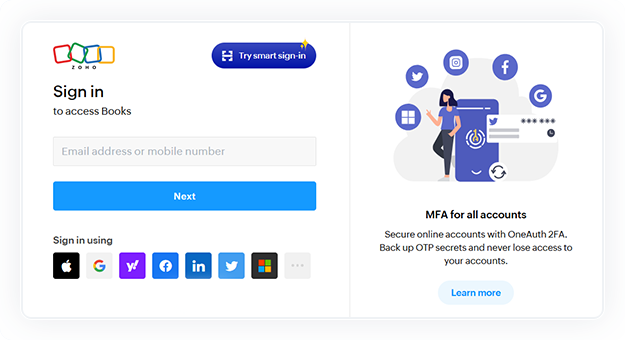
Log into zoho books
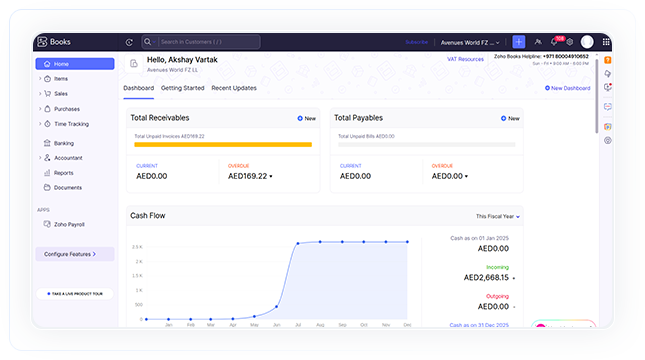
On the dashboard, click on 'Settings'
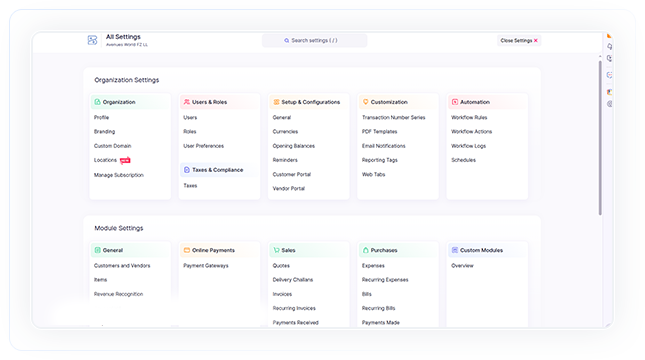
Click on 'Payment Gateways'
under section online payments
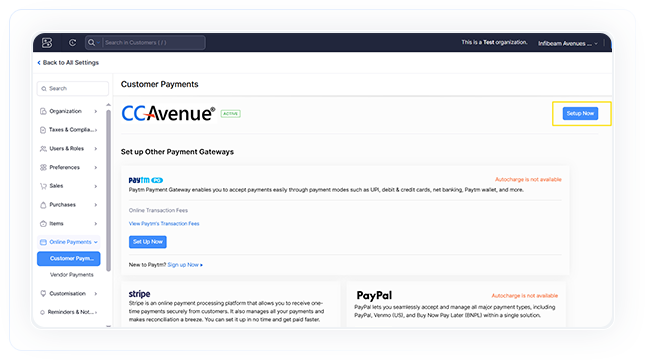
Click the 'Setup Now' button displayed
alongside the ccavenue payment gateway
to initiate the plugin installation.
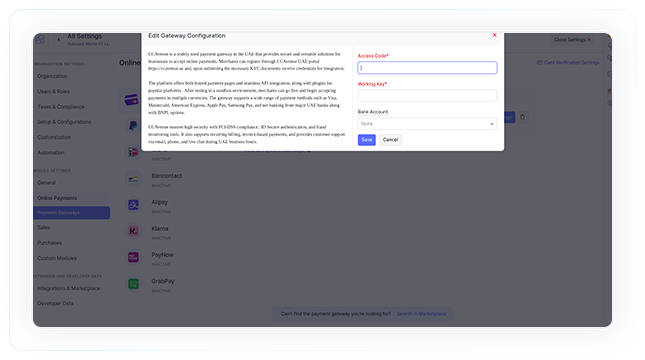
Enter Access code and Working key,
then click 'Save.' The plugin will be installed and appear to the merchant during invoice creation.
Login to your CCAvenue MARS account, navigate to settings > API Keys to get Access code and Working key.
The customer opens the invoice via
the link or from the customer portal
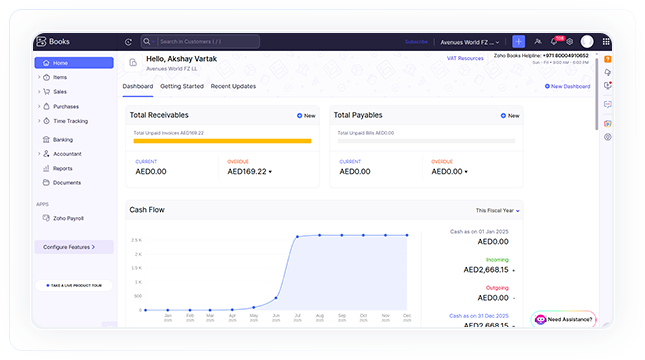
From the dashboard, navigate to the
left menu, select 'Sales' and click on 'Invoice'.
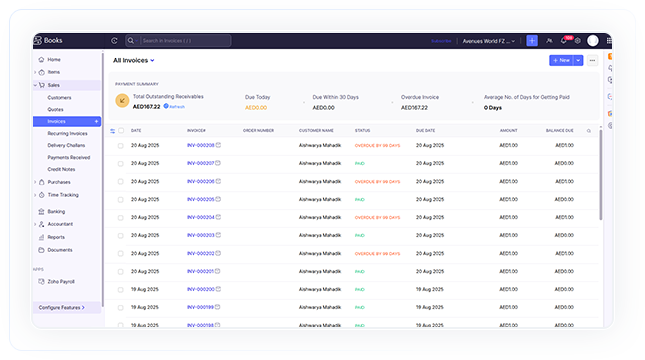
On the invoice section,
click on '+ New' to create a new invoice
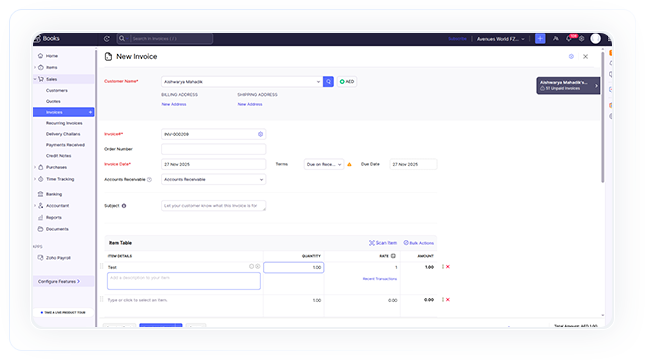
Add invoice details, enter customer
name, place of supply, order number
and subject etc.
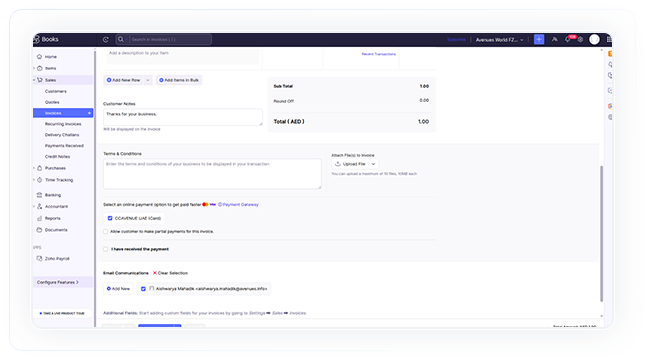
Add item details with the amount and
click on 'Save & Send'
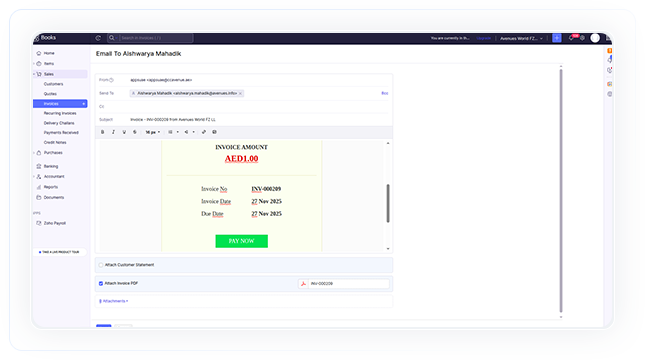
Send an invoice via email to the customer
from the invoice dashboard module
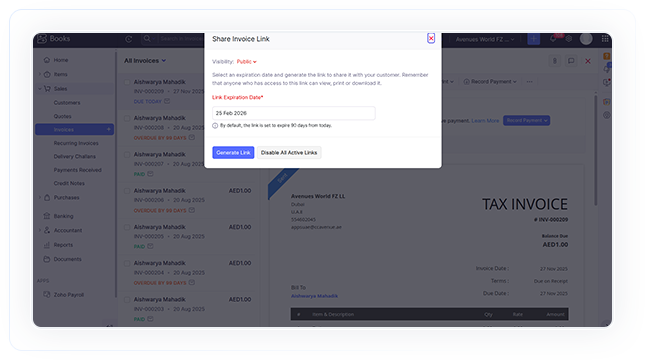
From the invoice dashboard,
select the relevant invoice and share the
invoice link with the customer whenever required
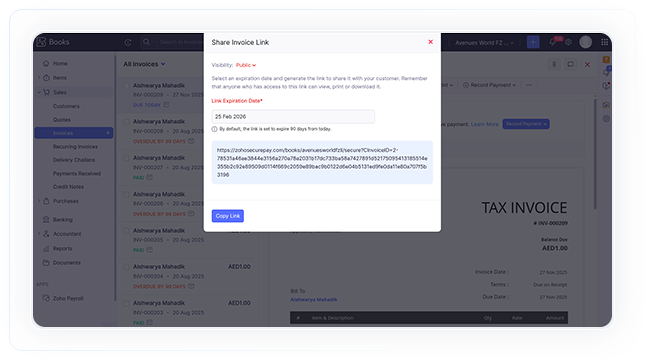
Click on generate link & copy the link
to send customer (offline)
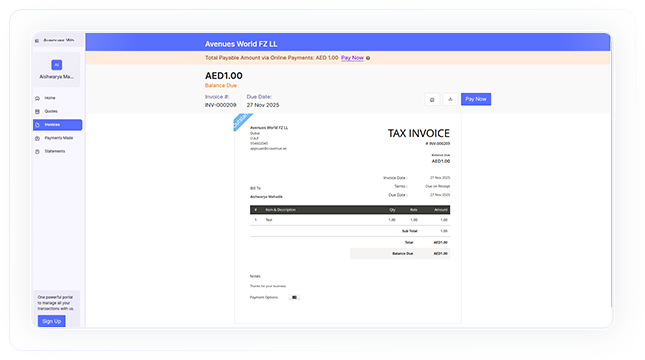
The customer opens the invoice
via the link or from the customer portal
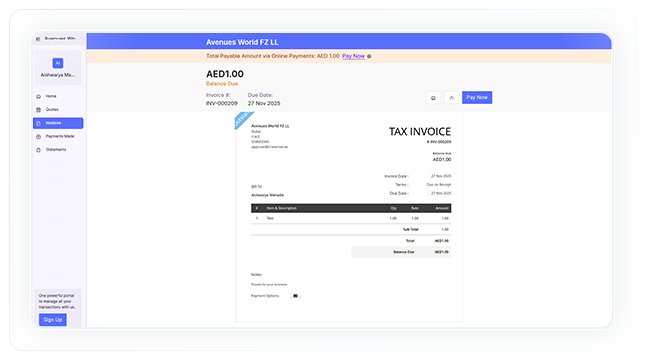
Click the 'Pay Now' button
on the invoice
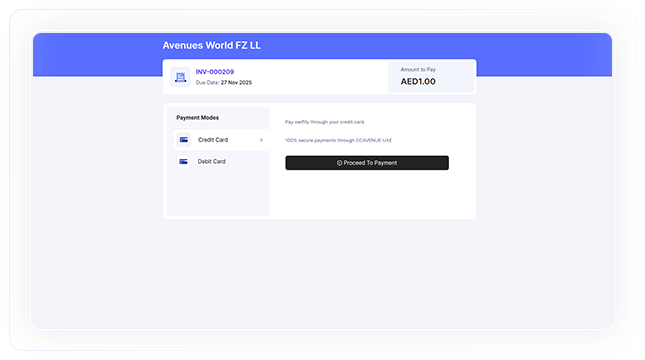
Customer select payment mode and
clicks on 'Proceed to Payment'
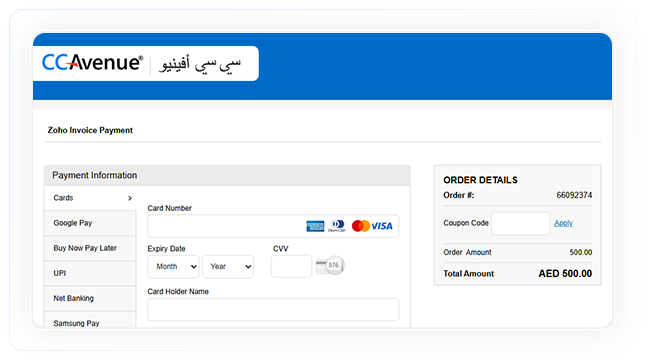
The customer will redirect to the
CCAvenue payment page
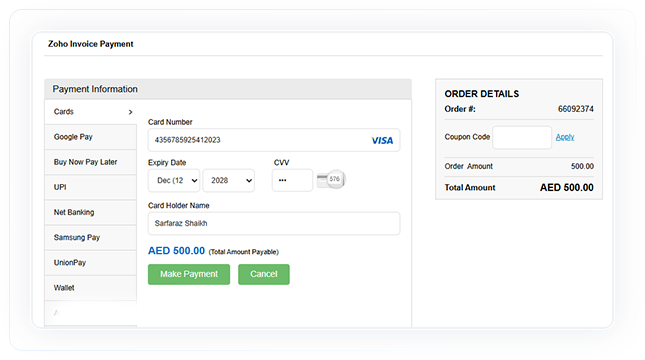
Add card details like card number,
expiry, cvv and click on the
'Make Payment' button

After payment completion,
customer will be redirected to
Zoho Books response page
 AvenuesAI. All Rights Reserved.


| Confirmed transactions between | Settled at |
|---|---|
| 16:00 Hrs (previous day) and 07:59 Hrs | 09:00 Hrs |
| 08:00 Hrs and 09:59 Hrs | 11:00 Hrs |
| 10:00 Hrs and 11:59 Hrs | 13:00 Hrs |
| 12:00 Hrs and 13:59 Hrs | 15:00 Hrs |
| 14:00 Hrs and 15:59 Hrs | 17:00 Hrs |